
How do I log my workers' hours?
Add the worker once in More (the Settings screen), then on their card pick the date, type the hours and tap + Add. LawnFlow keeps a running total of what you owe them.
Add a worker
Section titled “Add a worker”-
Tap More and tap Workers.
-
Tap + Add at the top of the list. The Add Worker sheet opens.
-
Type their name and their Hourly Rate ($). Role and phone are optional.
-
If they sometimes start or finish the day from home, start typing their Home Address and pick it from the list. They then show up as a start or finish point when you route the day.
-
Tap Add Worker.
Log their hours
Section titled “Log their hours”Each worker has a card in the Workers room. At the bottom of the card, the date is already set to today. Change it if you need to, type the hours in Hrs, then tap + Add. The day shows in the list above with the pay for it, and the figure under the name goes up. That figure, marked owed, is their hours times their rate.
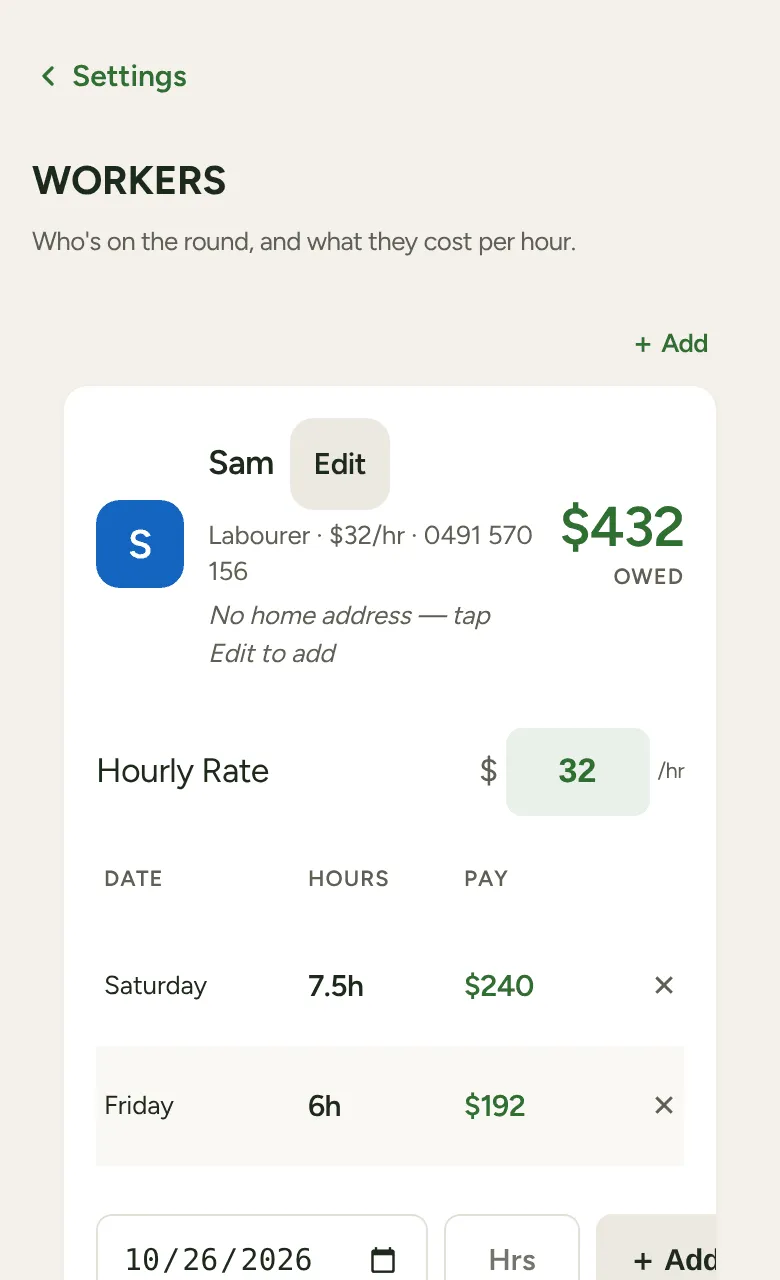
Logged the wrong day? Tap the ✕ on that row to take it off.
Pay them
Section titled “Pay them”When you’ve paid them, tap Mark Paid & Reset. The hours clear and the payment is saved under Payment History on their card, with the date, the hours and the amount. There’s no undo, so tap it after the money has gone.
Good to know
Section titled “Good to know”- Changing the rate in the Hourly Rate box changes the owed figure for the hours not yet paid. Hours you’ve already paid stay as they were.
- From the Money tab: while anyone is owed, the Money tab shows Wages due with a Hours logged, not paid row. Tap it to go straight to the Workers room.