
How do I book a job weeks ahead or on a set day?
Add Job books up to five weeks ahead. For anything further out, add the job, then use Reschedule on the customer’s page, which reaches 16 weeks. To fix the day, go forward on the Week tab and put the job on that day.
Up to five weeks out
Section titled “Up to five weeks out”When you add a job, When? offers Today, This Week, Week +1 and so on up to five weeks ahead. Pick the week and tap Add Job. That’s as far as this picker goes.
Further out: up to 16 weeks
Section titled “Further out: up to 16 weeks”-
Add the job with any week. This Week is fine.
-
Open the customer’s page. On Today, tap the job, then Edit. On the Week tab, press and hold the job.
-
Tap Reschedule. The Reschedule to… list runs from this week out to 16 weeks ahead, each week with its dates.
-
Tap the week you want. The job now comes up that week.
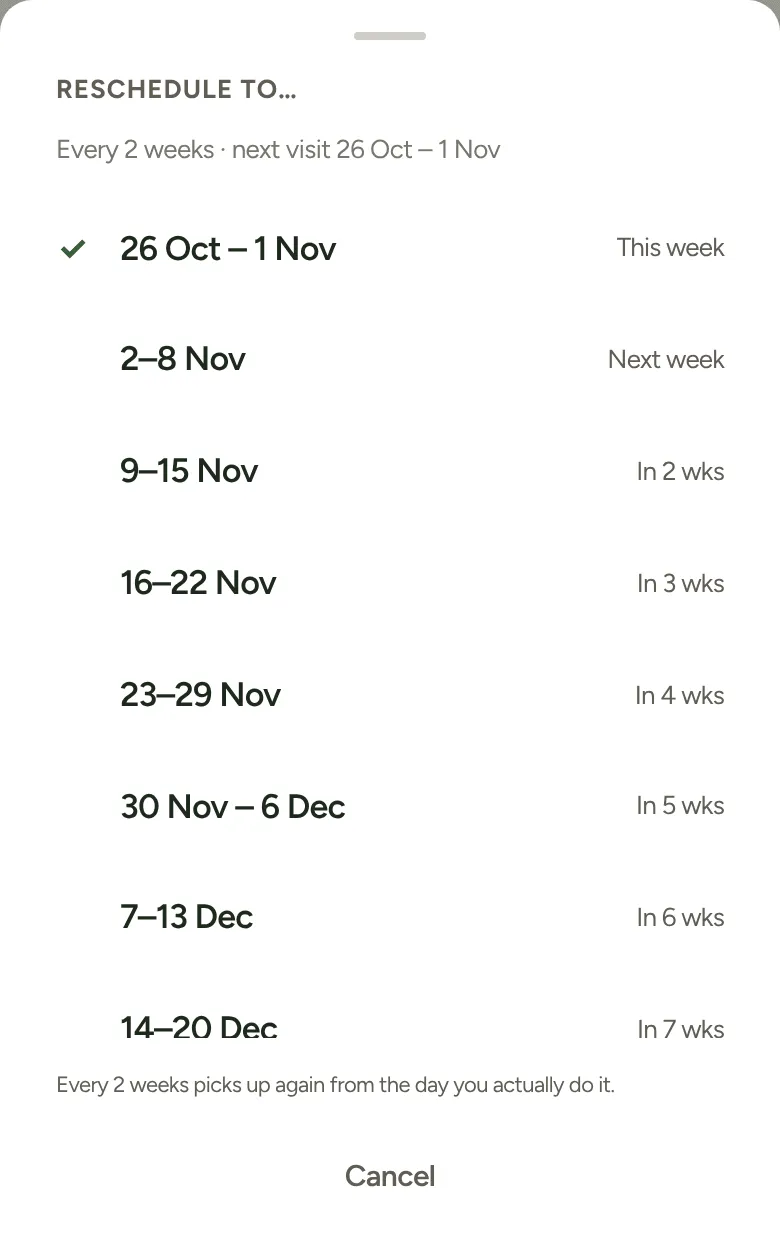
For a regular customer, their cycle starts again from that visit. So a customer on every 4 weeks counts on from the week you picked.
On a set day
Section titled “On a set day”You choose the day on the Week tab. It looks four weeks ahead:
-
Open the Week tab and tap › at the top to go forward: Next week, then Week of each Monday after it. A Planning ahead banner shows how many jobs are due that week.
-
Tap + Add / edit on the day you want.
-
Tap the job to put it on that day. Tap Done.
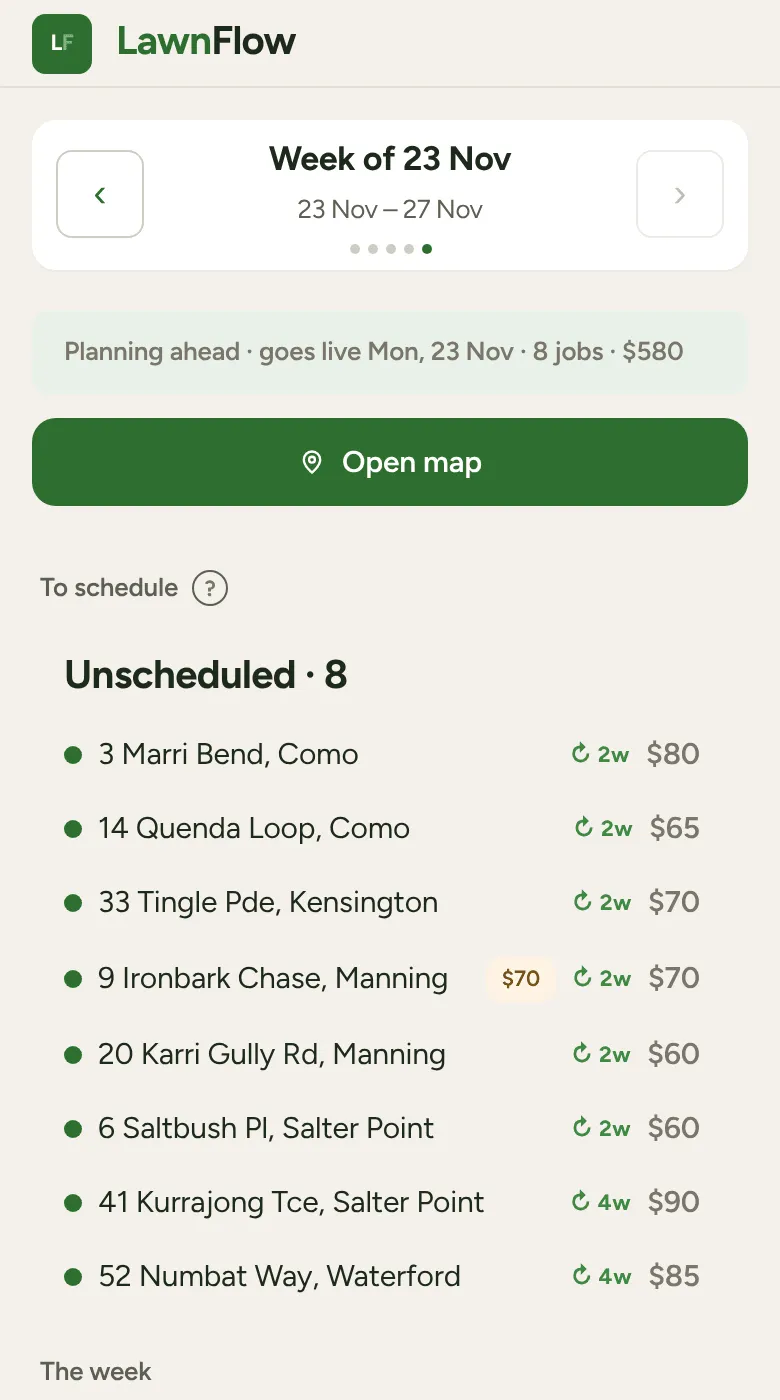
The job only shows on a week it’s due, so book the week first, then set the day. On the morning of that day, the job moves onto Today by itself.
A job booked more than four weeks out waits until its week comes into view. Set its day then.