
How do I bill NDIS customers and plan managers?
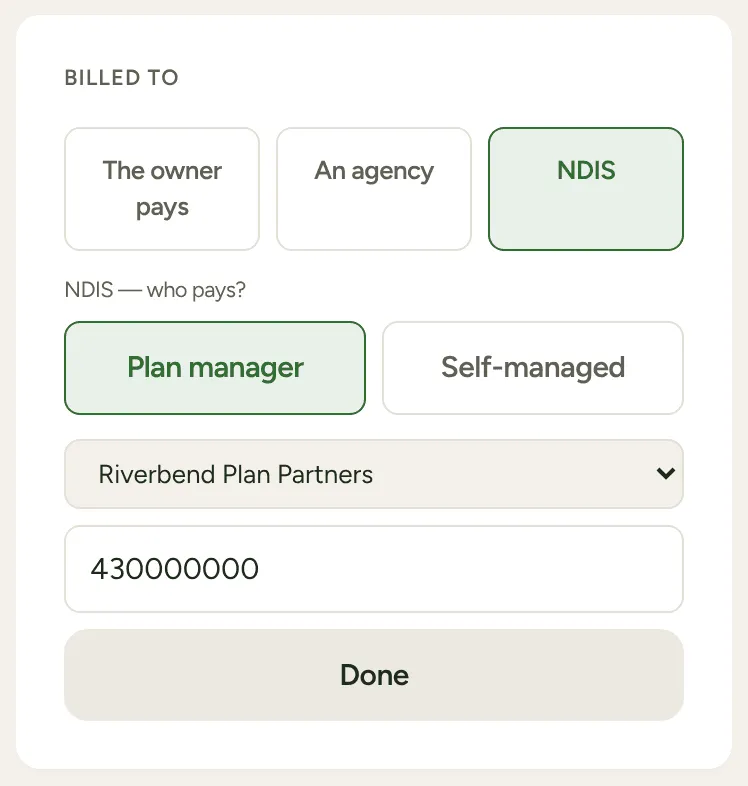
Open the customer, tap Billed to, choose NDIS, then say who pays: Plan manager or Self-managed. Add their NDIS number and tap Done. Their invoices are then GST-free, made out to the participant, with the NDIS number as the reference.
-
If a plan manager pays, add them first as an agency: More, Agencies, + Add agency, with their name and billing email.
-
Open the customer. Make sure Pays by says Invoice. The Billed to row shows once you have at least one agency saved and the customer pays by invoice.
-
Tap Billed to, then NDIS.
-
Under NDIS — who pays? tap Plan manager or Self-managed. For a plan manager, pick them from Choose a plan manager….
-
Type the participant’s number in NDIS Number (optional) and tap Done.
What the invoice says
Section titled “What the invoice says”- Made out to the participant, by their own name. With a plan manager, it goes to the plan manager’s billing email, and reads “care of” the plan manager unless that agency is set to Owner’s name only. Self-managed, it goes to the participant’s own email.
- GST-free, always. The plan manager’s own tax setting doesn’t change it, and nor does its price. An NDIS customer keeps their own price.
- The NDIS number goes in the reference, which is what the plan manager matches on.
Even if the plan manager’s agency bills itself for its other properties, LawnFlow still names the participant. The agency’s screen says so: NDIS participants are still named on their own invoices.
If the number is missing
Section titled “If the number is missing”The Billed to row says No NDIS number. When you finish the job there’s a box for NDIS number (goes on the invoice), so you can type it on the spot. If it’s still blank when you confirm, LawnFlow asks NDIS number not added — send anyway? You can send without it, but the plan manager may not be able to match the invoice.
If Xero says no GST-free rate
Section titled “If Xero says no GST-free rate”NDIS invoices need a GST-free tax rate in your Xero. If your organisation has none, LawnFlow won’t send the invoice rather than send it with GST. Add a GST-free rate in Xero, then send it again from Ready to invoice.