
How do I share my quote link?
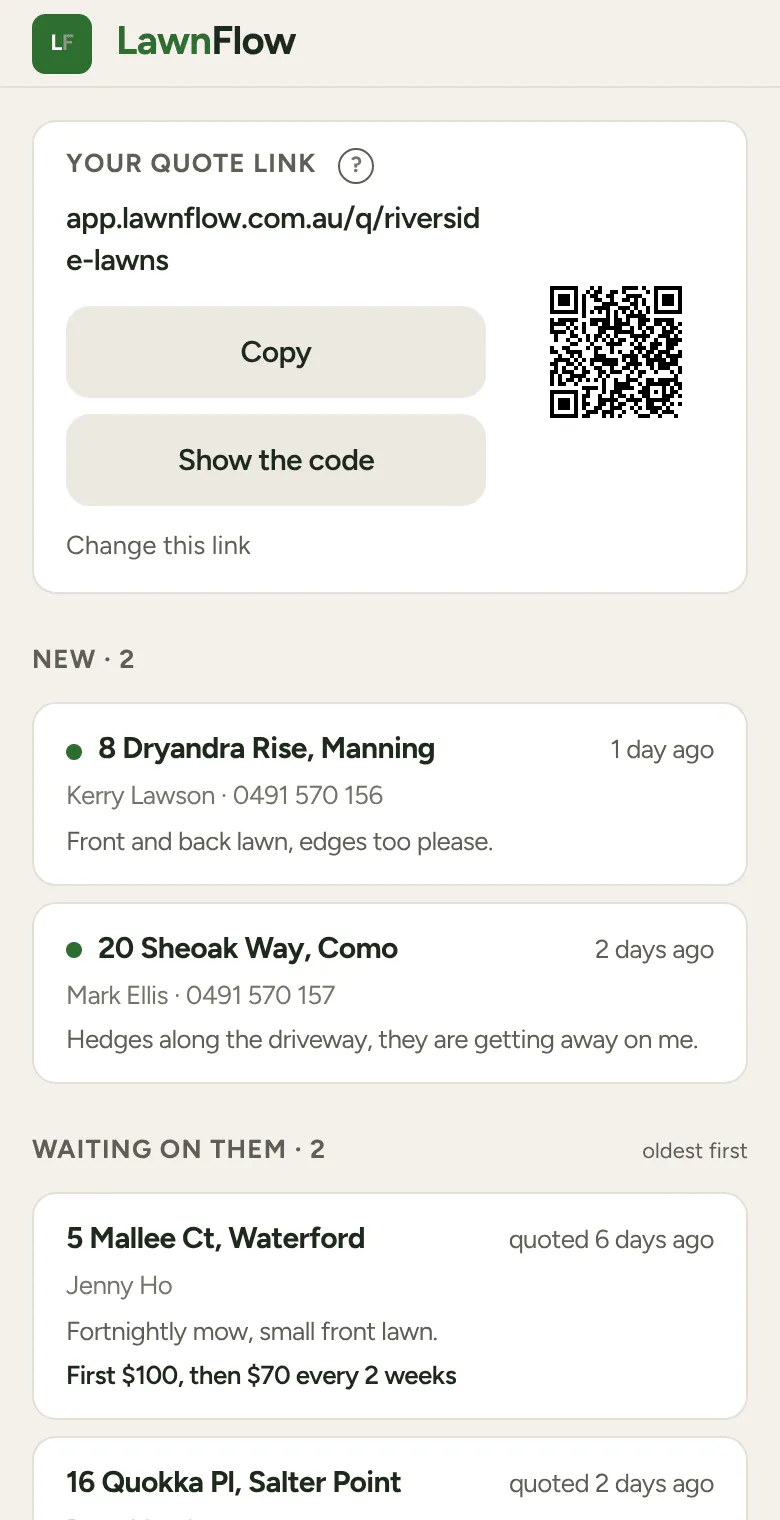
Open the Quotes tab. Your quote link is the card at the top: tap Copy to paste it anywhere, or Show the code for a QR code people can scan.
-
Open the Quotes tab. The first time, the card says you haven’t set one up yet. Tap Set up your link.
-
Type the last part of your link, usually your business name, like
riverside-lawns. Lower-case letters, numbers and single hyphens only. Tap Save link. If someone else already has that one, the app suggests one with a number on the end. -
The card now shows Your quote link. Tap Copy to put it on your phone’s clipboard (you’ll see Link copied), then paste it into a text, an email, your Facebook page or your email signature.
-
Tap Show the code (or the little QR code) to show it full screen. Someone can point their phone camera at it. Tap Save the picture to keep it for a flyer, a business card or the side of the ute.
What your customers see
Section titled “What your customers see”A short page with your business name at the top. It asks for their name, their mobile, the address and what needs doing. They can add up to four photos instead of writing a description. They don’t need an account. If you’ve saved a phone number under Business details, in Your Phone, the page also offers it so they can ring you.
When they tap Send, the request turns up on your Quotes tab under New, and the tab gets a red count.
Changing it later
Section titled “Changing it later”Tap Change this link. The app asks you to confirm first, because the old link stops working, and so does any QR code you’ve printed with it. Requests you already have aren’t affected.