
How do I set my business details, services and home address?
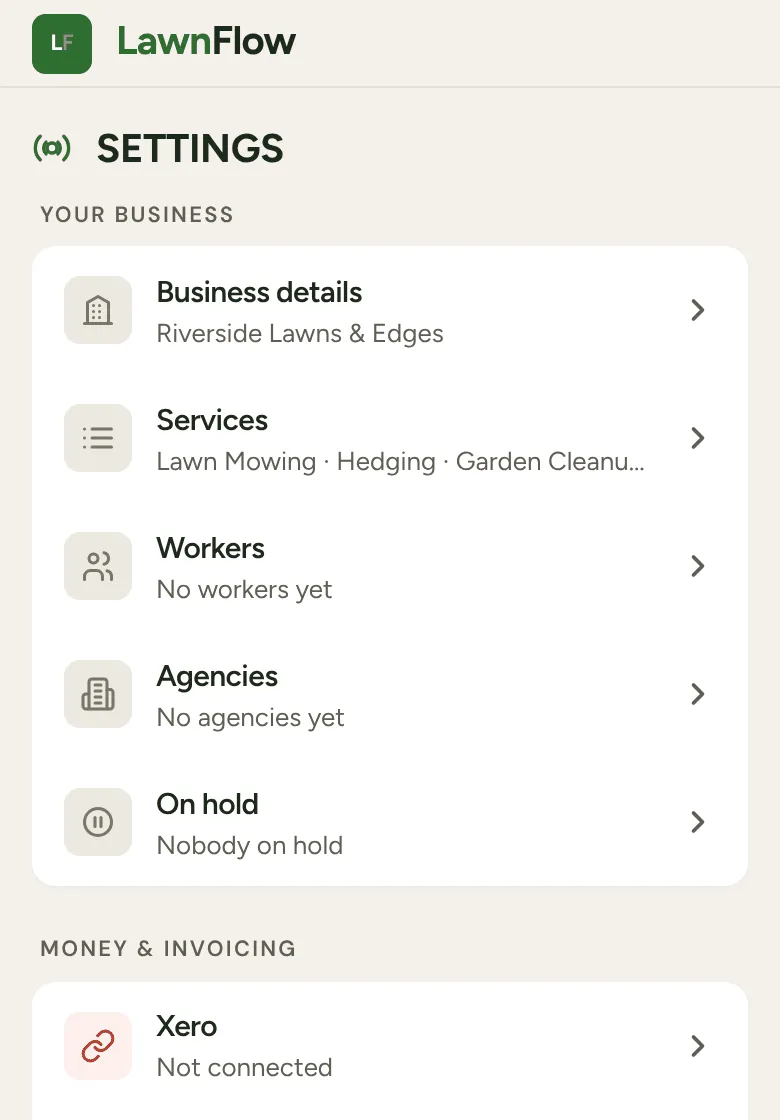
Tap More to open Settings. Business details and Services are under Your business, and Home address is under Running the round. Tap a row, change it, and tap the Save button that appears.
Business details
Section titled “Business details”-
Tap More at the bottom of the screen. It opens Settings. Tap Business details.
-
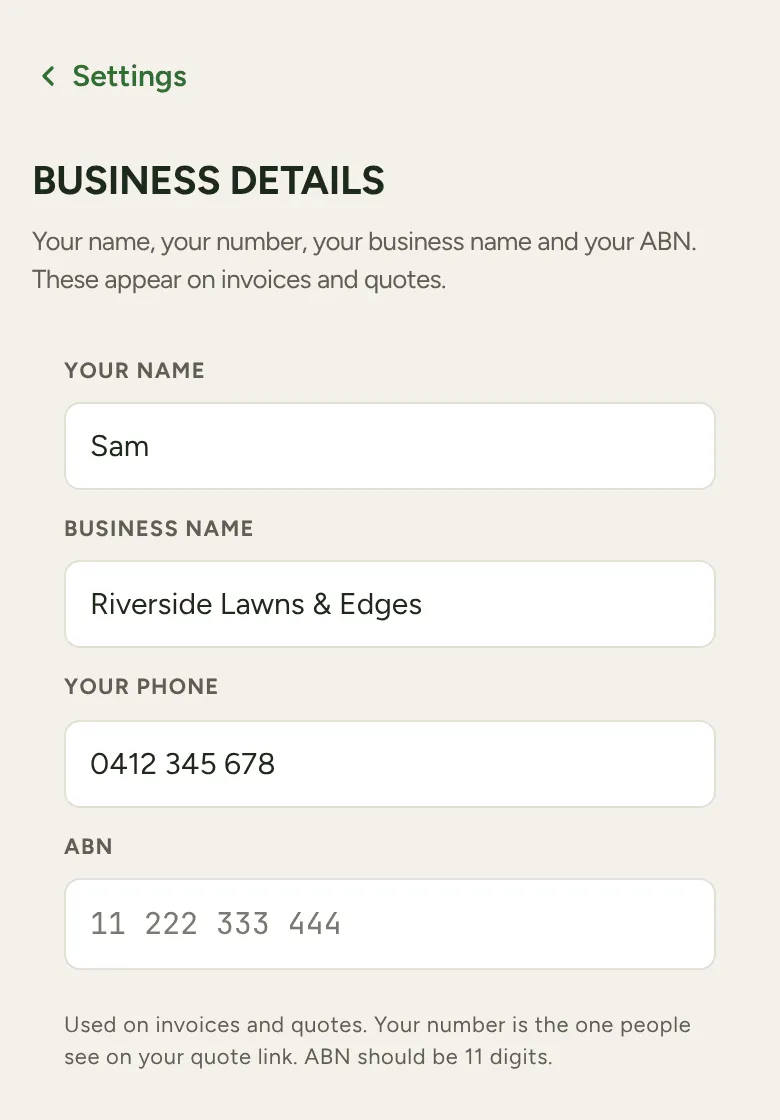
Fill in Your Name, Business Name, Your Phone and your ABN (11 digits).
-
Tap Save Business Details. The button only shows once you’ve changed something.
These go on your invoices and quotes. The phone number is the one customers see on your quote link, so use the number you answer.
Services
Section titled “Services”Services is your list of job types: “The job types you can pick when completing a job.” The same list fills the Service choice when you add a job.
- Tap + Add service for a new one and type its name.
- Tap the × beside a service to take it off the list.
- Tap Save Services when you’re done.
Taking a service off the list doesn’t change customers who already have it.
Home address
Section titled “Home address”Your home is where a route starts and finishes when you route from home.
-
In More, under Running the round, tap Home address.
-
Start typing in Your Home Address and pick your address from the list that drops down.
-
Tap Save Address.
Standing at home right now? Tap the location button beside it (Use GPS) instead, and LawnFlow saves where your phone is.
Timezone
Section titled “Timezone”LawnFlow sets this from your phone when you sign up. To change it, tap Timezone and pick from the list. The app reloads so every date uses the new clock.