
How do I move or skip a job on a rain day?
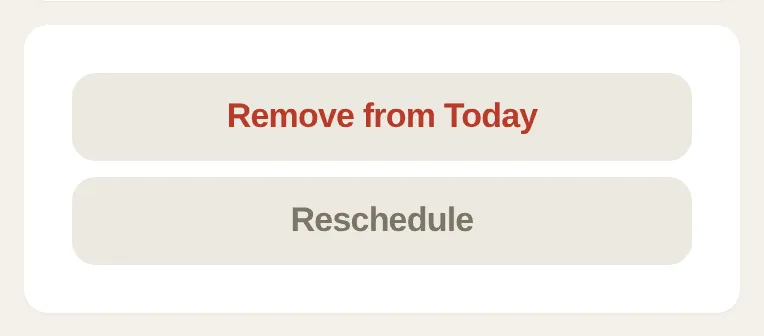
Open the customer’s page. Remove from Today takes a job off today’s run. Reschedule pushes it to next week or later. To move it to another day this week, use the Week tab.
There’s no separate Skip button. Skipping a job is Reschedule to Next week.
Push it to next week or later
Section titled “Push it to next week or later”-
On Today, tap the job, then tap Edit to open the customer’s page. (On the Week tab, press and hold the job.)
-
Tap Reschedule.
-
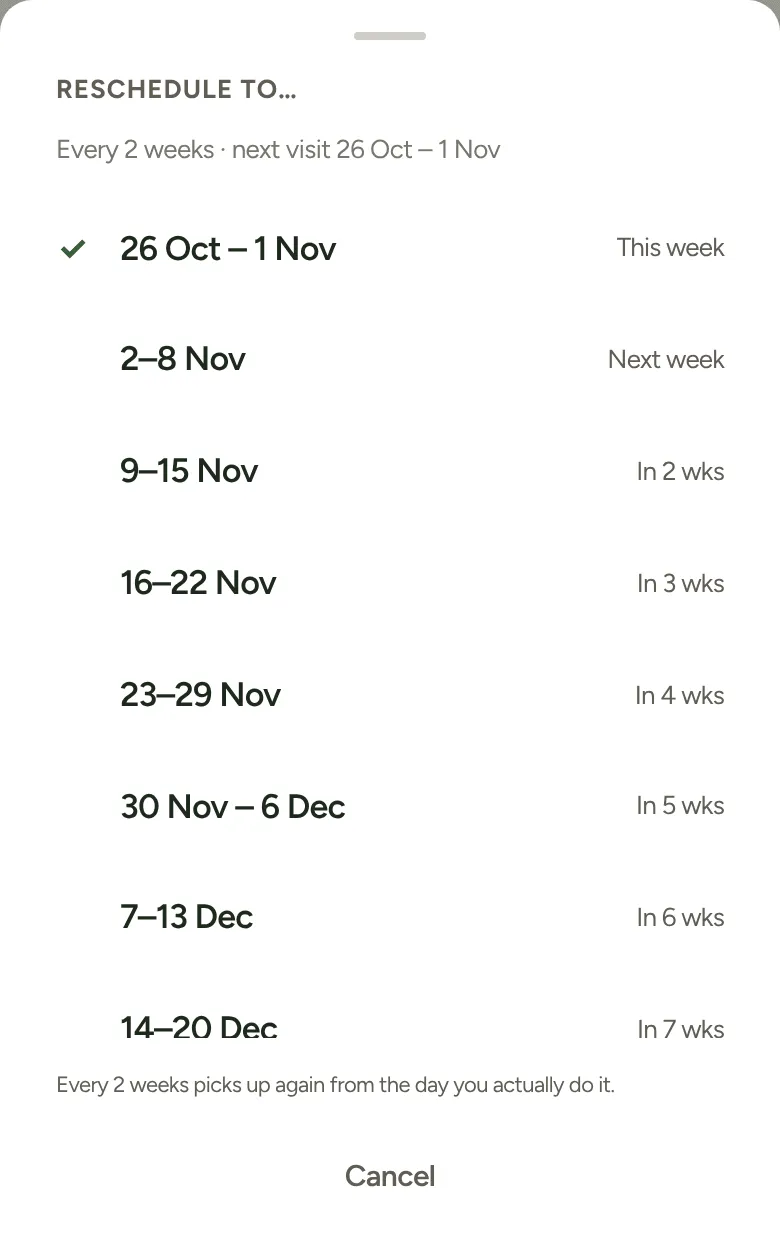
In Reschedule to…, tap Next week, or any week up to 16 weeks out. This week brings a job forward.
The job leaves today’s run and comes up in the week you picked. For a regular customer, the sheet reminds you their cycle “picks up again from the day you actually do it”, so pushing a fortnightly mow by a week doesn’t squeeze the next one.
Move it to another day this week
Section titled “Move it to another day this week”-
On the customer’s page, tap Remove from Today. If it’s due this week, it goes back to the Week tab, in the Unscheduled list.
-
On the Week tab, tap + Add / edit on the day you’ll do it, then tap the job. Tap Done.
A job you’d already put on a later day this week moves the same way. Tap + Add / edit on its day and tap it to take it off, then put it on the new day.
You can also do it from the map. Tap Open map on the Week tab, tap the job’s dot, tap Change day, then pick the day.
If you didn’t get to it
Section titled “If you didn’t get to it”Jobs left over from a day that’s gone wait in the Unscheduled list, marked with the day they were on (for example “from Wed”). Tap one to put it on today’s run, or give it a new day with + Add / edit.
Changed your mind
Section titled “Changed your mind”Open the page again and tap Add to Today to put a job back on today’s run.